SalesCodeMapping
SalesCodeMapping property set is used to define the logic to determining SKU (Stock-Keeping Unit) codes used for integrations and Summary. When integrating the 3D ecommerce configurator with eCommerce platforms, both must explicitly know the same set of SKUs in order for the configurator to be able to show proper prices and map the composition configuration to an order (Add To Cart)
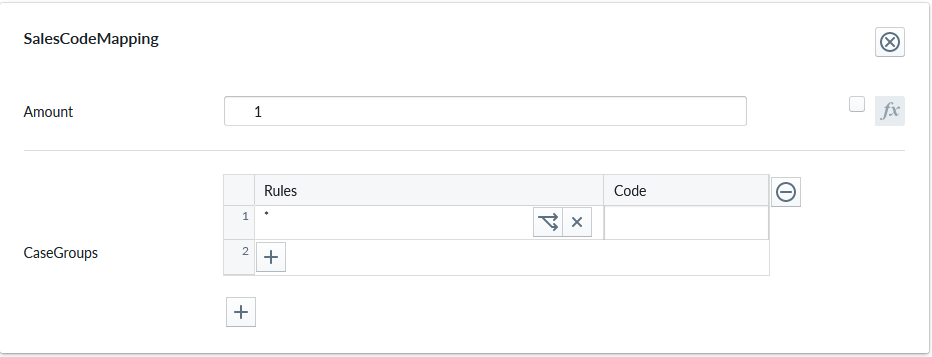
| Property Name | Type | Localized | Description |
|---|---|---|---|
| Measurand | Radio Button | N | The unit type of the Amount: Count, Length, Area, Volume, Weight, Time |
| Amount | Scripting | N | The defaul number of units each item where this property is defined will be counted, typically 1, but occasionally something else based on logic |
| Tags | String List | N | Tags that categorize this sales code mapping. Defaults to a single tag ("Common") |
| CaseGroups | Logic Fields | N | For each logic group, a selection of case split logic rules in the rule field that define an outcome code into the code field. * denotes applies to all definition A case-split can be based on scripting logic, a child condition (eg. material slot or accessory slot selection), Multiple case groups perform an composed SKU code. Refer to Sales Code Mapping for more information |
The Measurand specify what kind of a measurement is the Amount... It can be a number of element (Count) or measurements (Length, Area, Volume, Weight, Time ). In case of measurements the entered value is in standard unit system in meters. In the shown example 1.5 for Measurand=Area, it means 1.5 square meters. these will be shown on the planner according to the selected unit system. For example if the selected unit system is cm, then the displayed value is 15000 square cm. The conversion will be done also in imperial measures.
Tags are free-form, case-insensitive strings used to enable or disable this mapping at runtime based on the selection per site. The Tags can be enabled for each site.
There is a list there (In "Site Configuration" > "Product Catalog" > "Tags" (from the "..." context menu) of all tags found in all SalesCodeMappings from product or part level recursively.
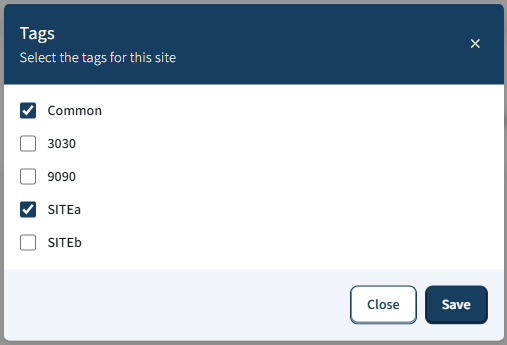
On publishing only the SalesCodeMappings with enabled Tags, will be taken into account.
Note
The same library tag catalog is reused by the SiteVisibility property set on pre-built compositions, parts, and materials. Enabling or disabling a tag on a site affects both SKU mapping filtering and option visibility (pre-built compositions, parts, and materials). See SiteVisibility property set for details.
Tags behavior:
- Comparison is case-insensitive (OrdinalIgnoreCase).
- Duplicates should be avoided; only one matching tag is required to enable the mapping.
- Back-compat: legacy data without tags is initialized to the default "Common" tag.
Tags examples:
- ["Online", "B2B"] enables this mapping when either "online" or "b2b" is enabled at runtime.
- ["Common"] (default) keeps the mapping generally available unless a stricter tag set is enforced.
For admin users there is a way to edit the skus in an external text file and import it back.
Parts and Products have two extra context menus, exportSKUs and importSKUs:
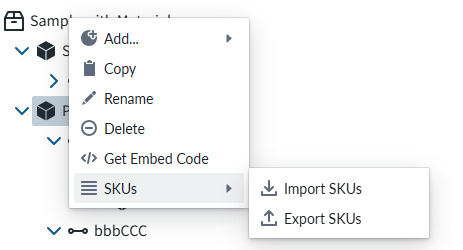
This is usefull especially in the case that there are hundreds of entries. Editing those one by one would be practically impossible.
Row IDs and SKU texts
Every row (case) of a Sales Code Mapping has a stable ID. The ID does not change when you edit the code, add rows, or move a case group. The SKU texts of a mapping are stored against these IDs, so they survive such edits and an SKU export and import.
The Edit SKU texts button in the Sales Code Mapping panel opens the SKUs tab of the Translations view, filtered to the current item.
What happens to SKU texts
| Change | SKU texts |
|---|---|
| Edit the code of a row | Kept. |
| Add a row | Kept. The new row has no texts. Exception: when the rows of the group now cover every option (and the empty slot, when the slot can be empty or disabled), the texts of the combinations without a code from that group are removed. |
| Move a case group | Kept. |
| Export and import the SKUs | Kept. |
| Delete a row | The texts of the combinations that used the row are removed. |
| Split a row | The new rows start empty. The texts of the old row are removed. |
| Change the conditions of a row (split or split-edit) | Kept. Exception: when the rows of the group now cover every option (and the empty slot, when the slot can be empty or disabled), the texts of the combinations without a code from that group are removed. |
| Add a case group that has a default row (an empty mask, or a mask with only zeros) | All existing SKU texts of the mapping are removed. |
Warning
Adding a case group that has a default row removes the existing SKU texts of that mapping. A new group starts with such a row. The composed codes can look the same as before, but they are different combinations now, so the old texts no longer belong to any of them. Add the case groups first and write the SKU texts afterwards.
Adding a row, or changing the conditions of a row, can also remove texts. When the rows of a group cover every option (and the empty slot, when the slot can be empty or disabled), the combinations without a code from that group (shown as – in the SKUs tab) are no longer possible, and their texts are removed on save or import.
Changing the slot itself, for example turning on Must be connected, hides those combinations at once. Their stored texts are only deleted at the next mapping edit or SKU import.