Conditional Availability
Conditional availability is used to dynamically enable or disable an option based on a script. It applies to material and accessory slots, linear structures, grid structures, and multi-connector structures. If the available script evaluates to false, the option is hidden from add and replace menus in Planner.
An option can also become unavailable after it has already been added to the composition. In that situation, the runtime resolves the invalid content in this order:
- If
ErrorMessageOnlyis enabled, the option stays in place and Planner shows the validation message. - Otherwise, if
Replacementis configured, the runtime follows the replacement chain and uses the first allowed replacement. - If no allowed replacement is found, a linear end component, a grid component, or a multi-connector component can be removed when the structure's connectivity rules allow it.
- If the content still cannot be auto-healed, the invalid option stays in place and Planner shows the validation message.
ErrorMessageOnly takes precedence over Replacement. When the boolean flag is enabled, the replacement dropdown selection is ignored and no automatic replacement is attempted.
For MustBeConnected slots, configure the options so that at least one allowed option exists for every relevant state. If no allowed replacement exists, Planner now surfaces a validation error instead of silently choosing an arbitrary fallback.
For grid structures, replacement candidates must preserve the logical row and column footprint. Fixed grid-line sizes cannot change. A dynamic row or column can be resized to the replacement's physical size only when the replaced component is its sole occupant. Replacement chains also reject candidates that create illegal contacts, split a grid with RequireConnectedness, or violate an option's RequireConnection rule.
For multi-connector structures, each occupied connector must have a uniquely named counterpart on the replacement, and every resulting connection must be permitted by the connectivity matrix and host-only restrictions. Unoccupied connectors need not match. Connector types, property-set IDs, and geometry may differ; preserving logical connections does not guarantee geometric alignment. Availability is checked in the proposed connection context, including topology and connector connection state. Replacement chains also respect component limits. If no usable replacement exists, automatic removal follows the existing connectivity-preserving removal rules; the root-attached component and components whose removal would disconnect the structure stay in place with a validation message.
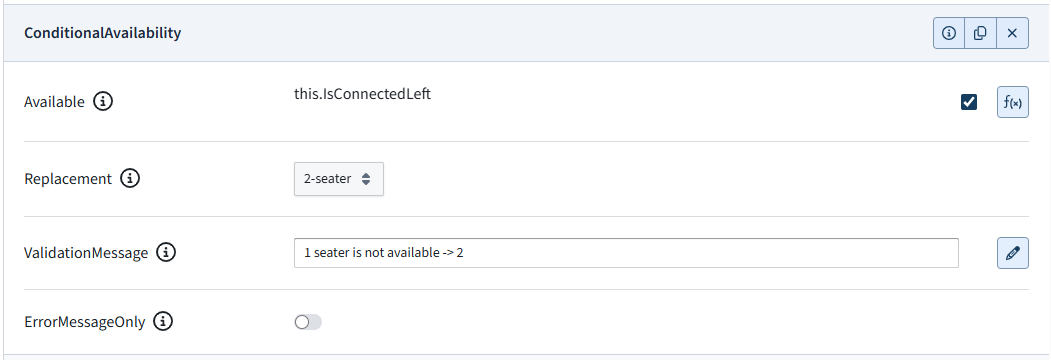
| Property Name | Type | Localized | Description |
|---|---|---|---|
| Available | Script true/false | N | A scripted condition which determines whether this option is currently available. |
| Replacement | Option | N | Replacement option to try first if this option becomes unavailable after it has already been selected. Replacement chains are allowed; the first allowed replacement is used. |
| ValidationMessage | Text field | Y | Localized planner validation message shown when unavailable content must remain in the composition. |
| ErrorMessageOnly | Toggle | N | Prevents automatic replacement and shows ValidationMessage instead. This flag takes precedence over the Replacement selection. |
Note
ValidationMessage above is shown only for content that is already placed in the composition and cannot be auto-healed. It is unrelated to LibraryCategoryStructure's per-item "Visible when not allowed" setting, which instead controls whether an option that is not yet placed — and currently unavailable for any reason, including but not limited to Available evaluating to false here — is still shown greyed-out in the Planner menu with its own separate, static message.